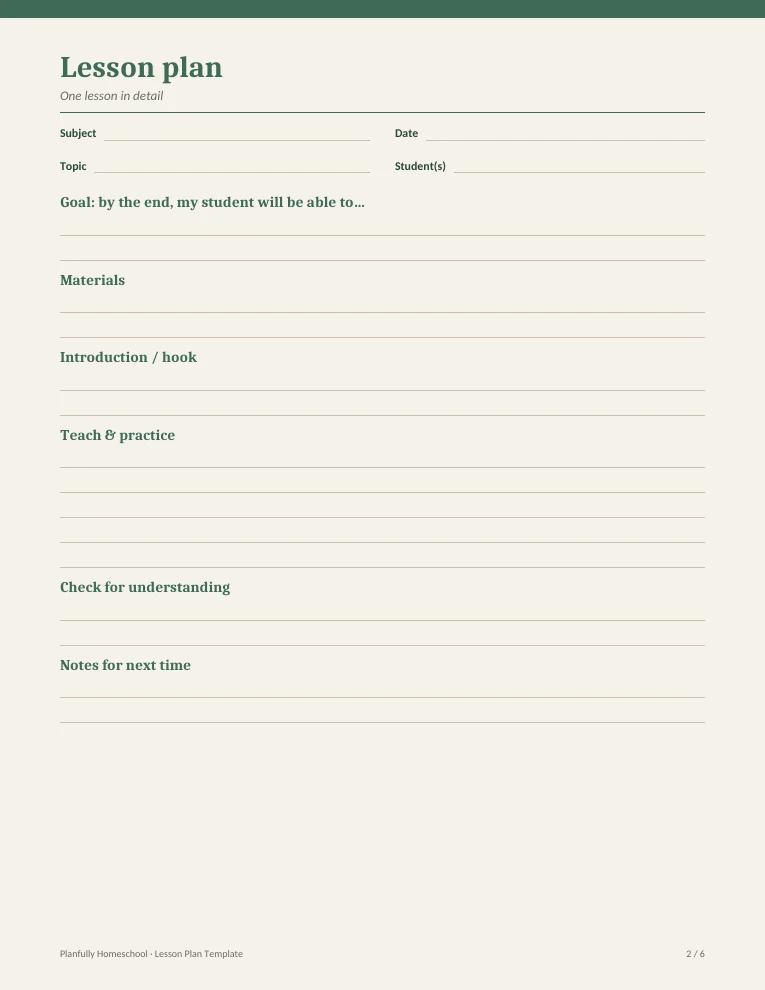
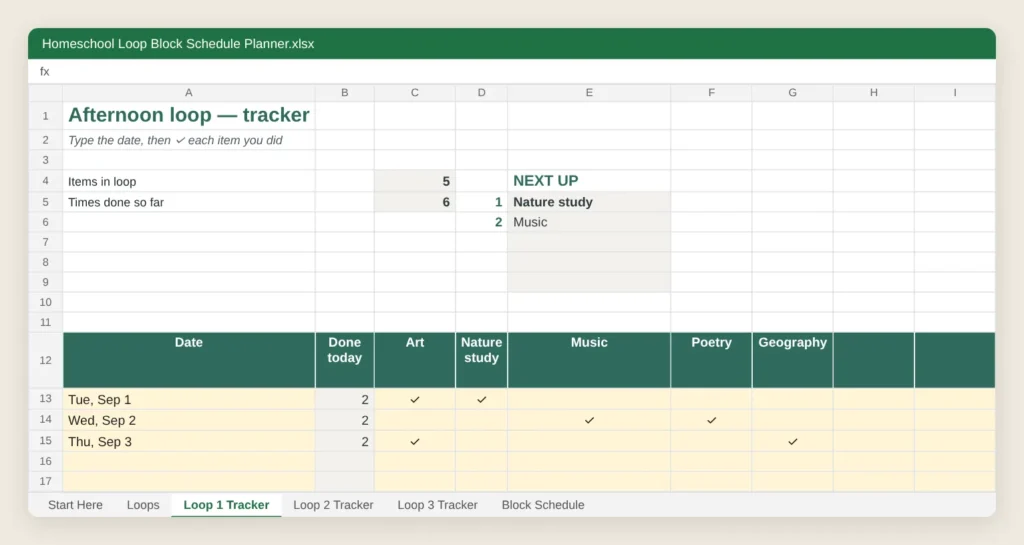
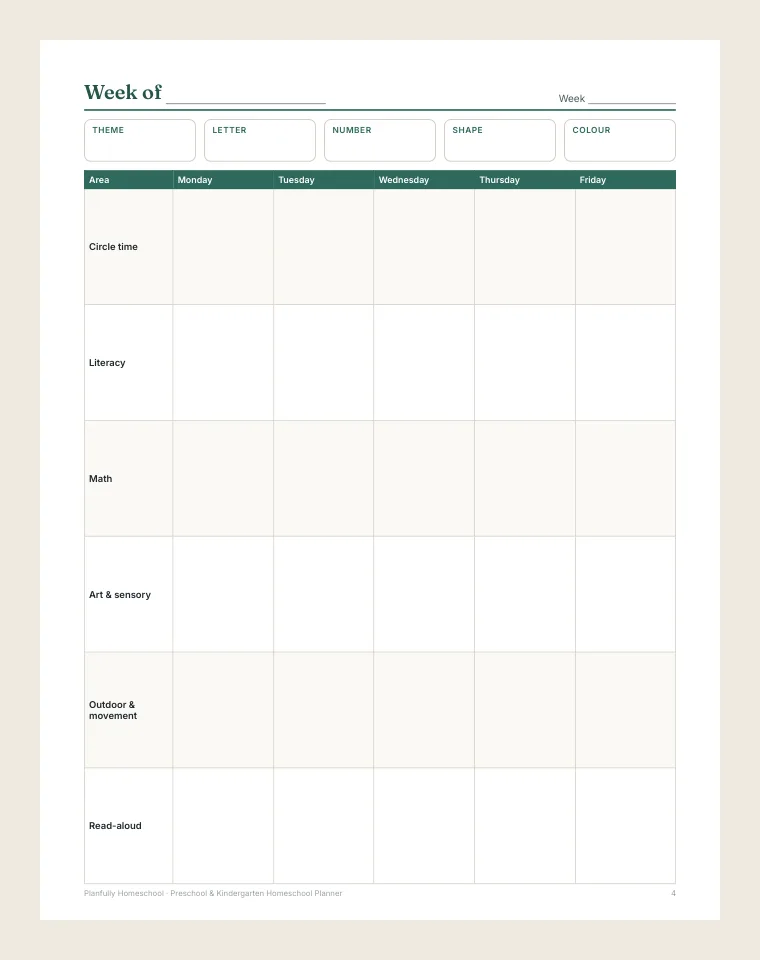
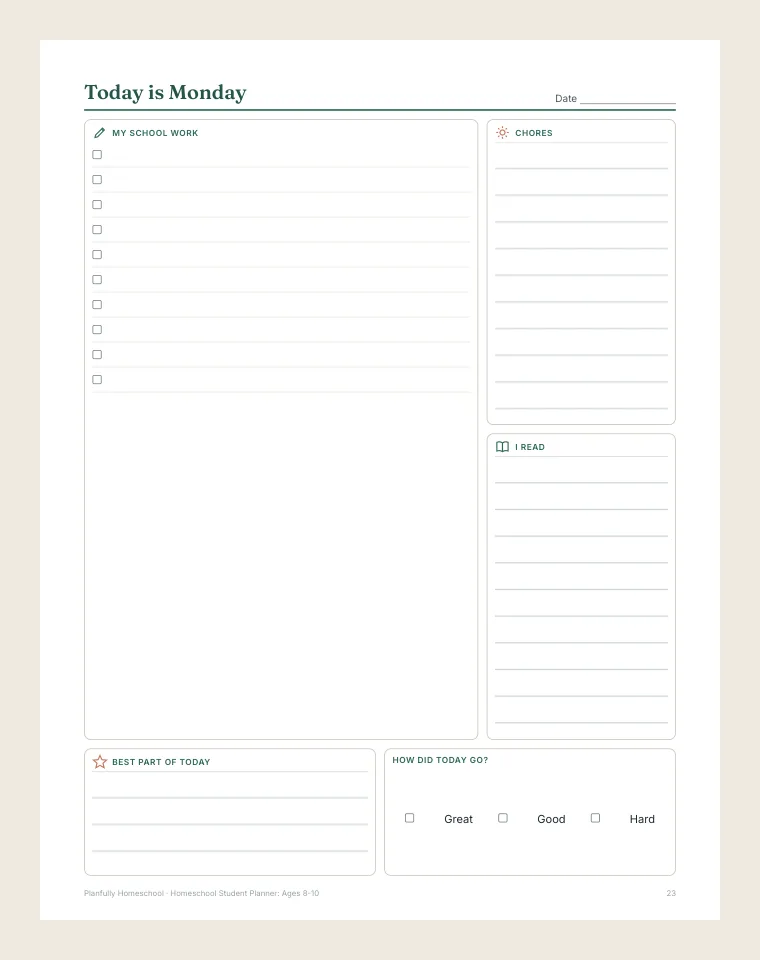
This homeschool lesson planner is a spreadsheet that does the scheduling for you. Type in each curriculum, how many lessons it has and which weekdays you teach it, and the planner puts a date on every single lesson for the whole year — for up to six children. Miss a day, add it to one list, and every later lesson slides forward on its own.
What’s inside
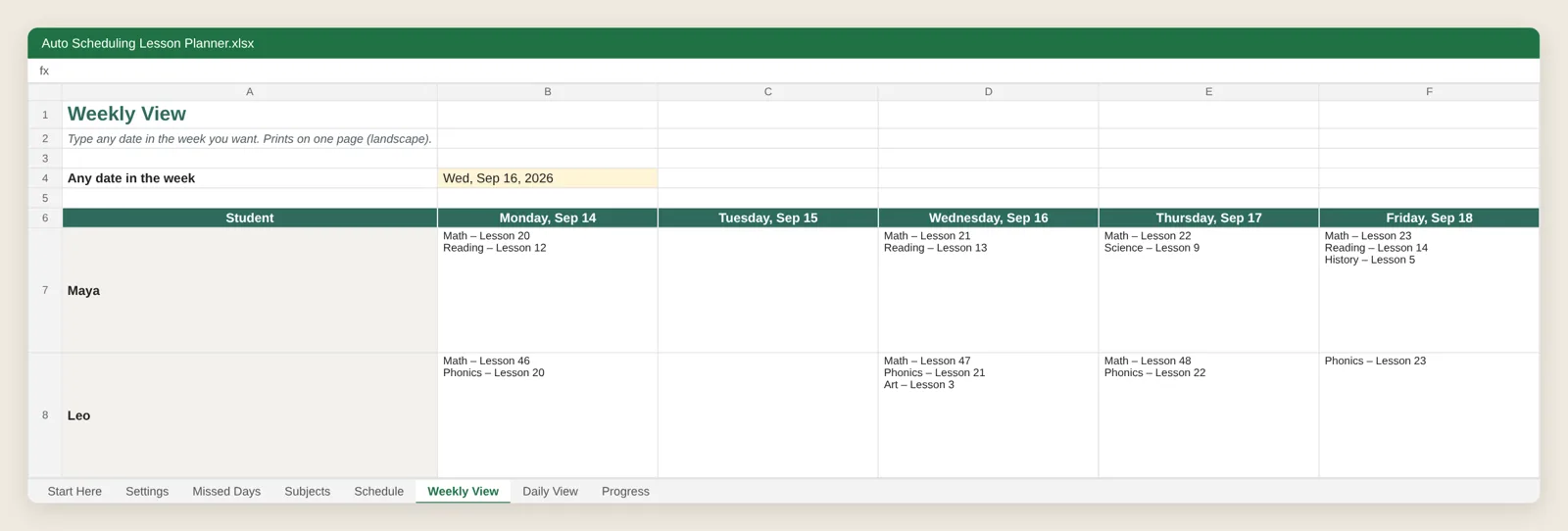
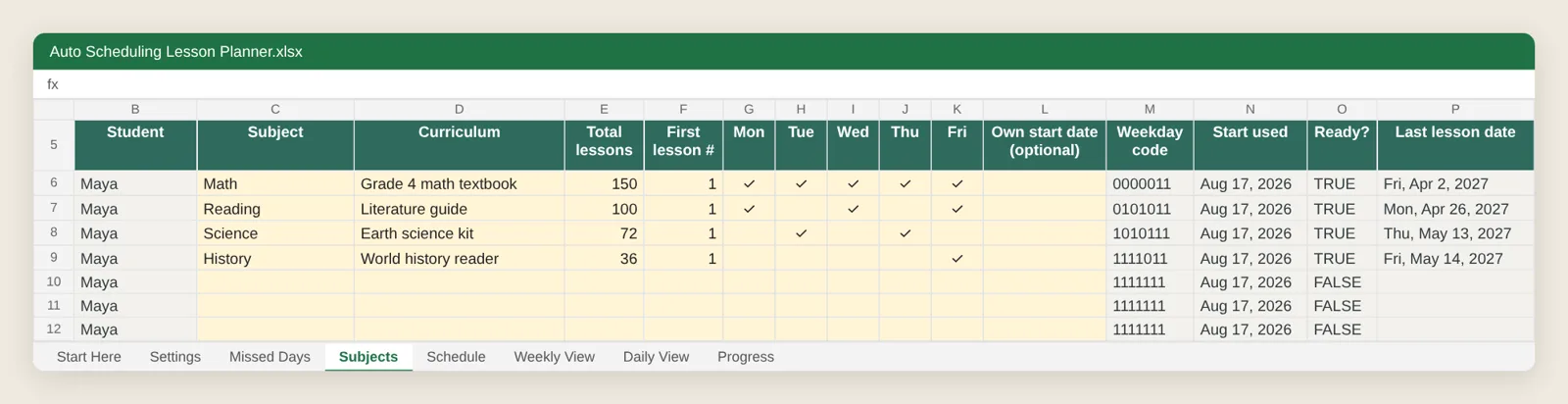
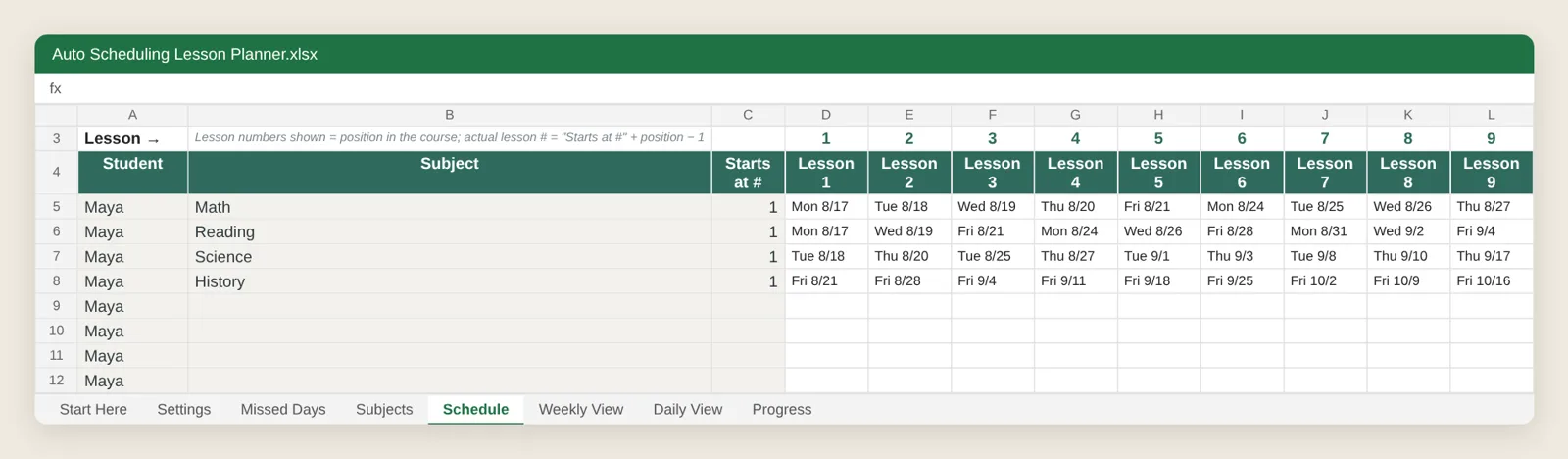
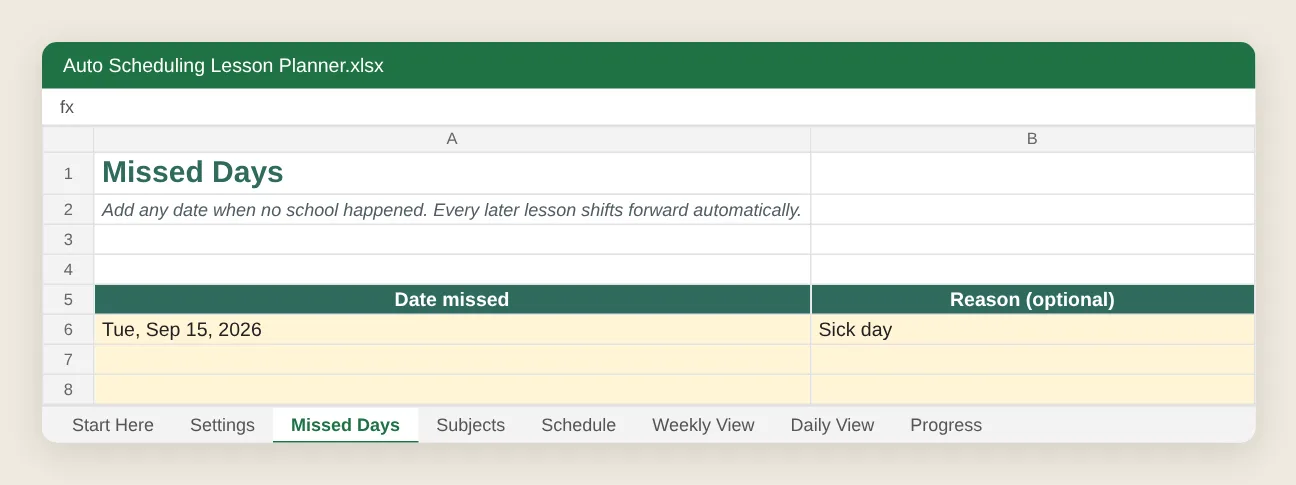
- Start Here — ten numbered steps; the whole set-up takes about 20 minutes.
- Settings — your school-year start date, up to six students, and a list of breaks and holidays.
- Subjects — twelve subjects per child: curriculum, total lessons (up to 200), first lesson number, and Mon–Fri ticks.
- Missed Days — sick days, surprise outings, “we just didn’t” days.
- Schedule — the date of every lesson, generated for you.
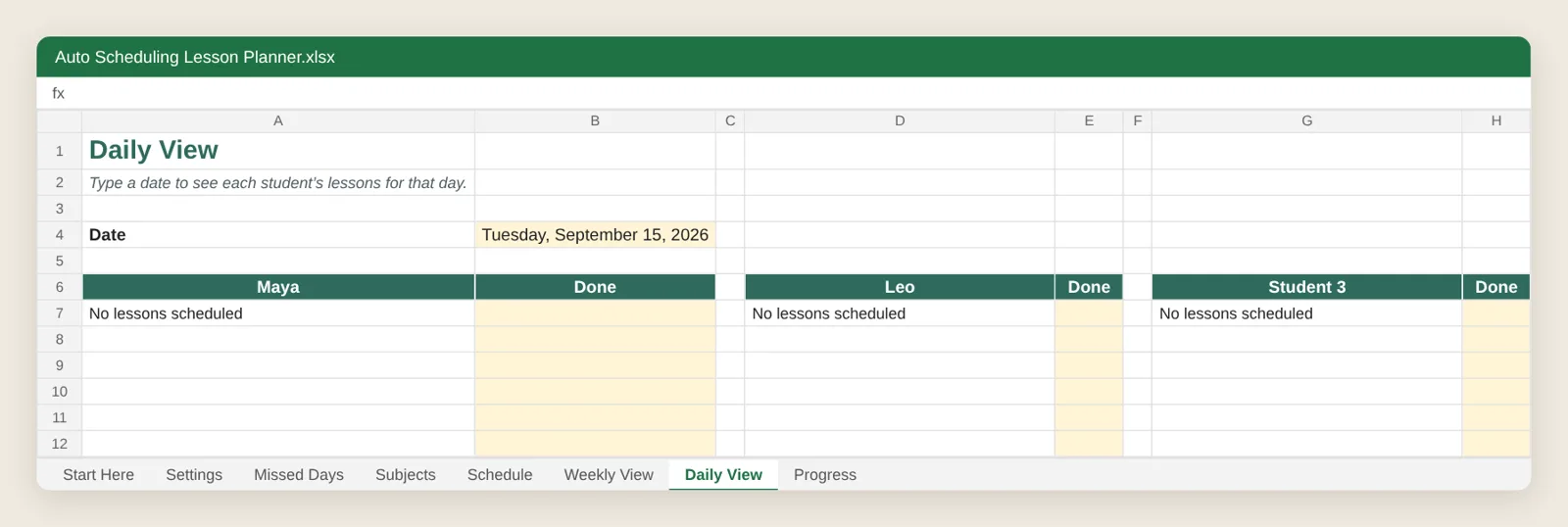
- Weekly View and Daily View — printable one-page plans for any week or day.
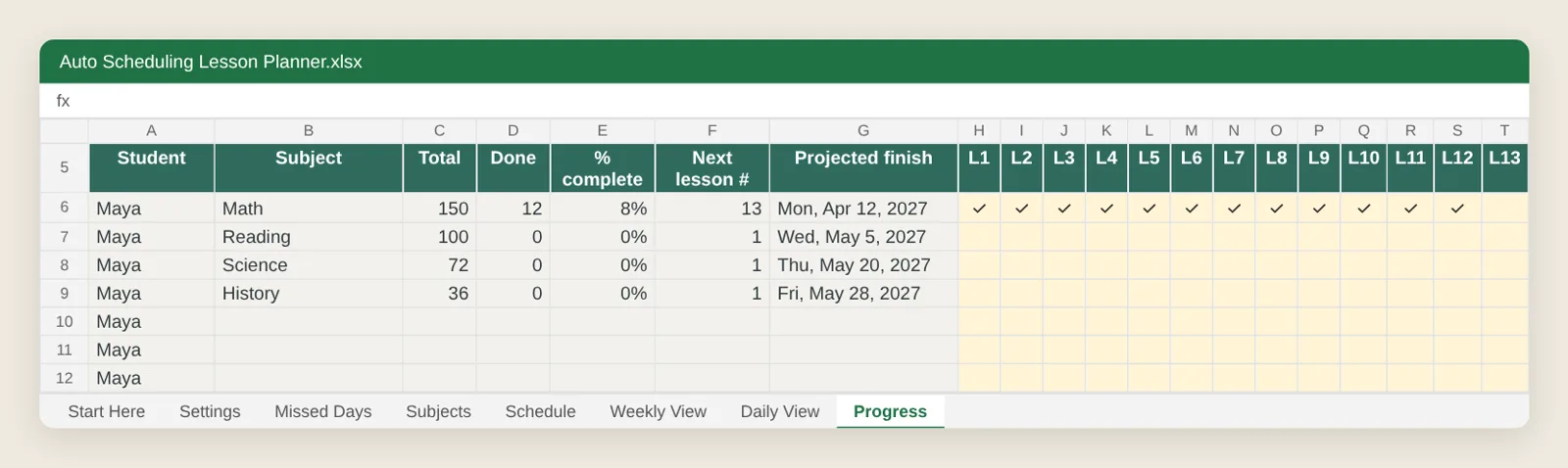
- Progress — a tick box for each lesson, percent complete and the projected finish date for every subject.
- A worked example file with a two-child family already set up, so you can see it working before you type anything.
How the auto-scheduling works
Each subject gets its own teaching days. Math might be Monday to Friday, science Tuesday and Thursday, art only on Wednesday. The planner counts forward from your start date, skipping any weekday that subject isn’t taught and every date on your Breaks list, and gives lesson 1, lesson 2, lesson 3 and so on a real date. If you start a book part-way through, set the first lesson number to 31 and the schedule labels lessons from there.
The part most planners can’t do is what happens when life gets in the way. Add Tuesday the 15th to Missed Days and every lesson that would have fallen on or after that Tuesday moves forward one school day — but only for subjects you teach on Tuesdays. Reading on Monday, Wednesday and Friday doesn’t budge. Your finish date for each subject updates at the same time, so you always know whether you’re still on track for the end of the year.
Under the hood it’s plain spreadsheet formulas (WORKDAY.INTL with a weekday code built from your ticks), so there are no macros, no scripts and no permission pop-ups. Nothing is password-protected; if you want to change a formula, you can.
Try the pacing idea first
Not ready to plan the whole year? Use the free calculator below to see when a single curriculum will finish and how many lessons a week you’d need to finish by a date you choose.
Lesson Pacing Calculator
When will you finish this curriculum — and how many lessons a week do you need to finish on time?
School days are counted Monday onward (4 days = Mon–Thu). Break weeks are added as whole weeks. For exact dates around specific holidays and missed days, use the Auto-Scheduling Lesson Planner.
Who it’s for
- Families using open-and-go curriculum with numbered lessons (most math, phonics, grammar and science programs).
- Parents teaching two to six children on different subjects and schedules.
- Anyone who has ever crossed out a paper planner because of one sick week.
Who it’s not for
- If you prefer to rotate subjects without dates, the Loop & Block Schedule Planner suits you better.
- If you want a pretty printed planner to write in by hand, choose the Undated Homeschool Planner.
Formats & compatibility
- One .xlsx file plus a filled-in worked example.
- Works in Excel 365, Excel 2019 and Google Sheets (upload it to Drive and open with Google Sheets). Not tested in Apple Numbers.
- Weekly View and Daily View print on one page each (landscape).
- Undated: set it up again for next year with a new start date.
Questions
Does it handle subjects taught on different days?
Yes. Every subject has its own Mon–Fri ticks, so a Tuesday/Thursday subject only ever gets Tuesday and Thursday dates.
What if we school on Saturdays?
The planner schedules Monday to Friday. If you school on Saturdays, the simplest approach is to move a Saturday subject to Friday in the planner, or use the loop planner for weekend extras.
Can I mark a day off for just one child?
Missed Days apply to the whole family. For one child, you can give that child’s subjects their own start date or add one to the total lessons — the schedule recalculates either way.
Does it work if we start in the middle of a book?
Yes — put the lesson you’re starting on in “First lesson #”. The schedule and the Weekly View label lessons from that number.
Will I lose the schedule if I edit it?
No. The schedule is formulas, not typed dates, so it recalculates whenever you change a start date, a break or a missed day.
Related
Planning by subject but want a paper version for the fridge? The Homeschool Weekly Planner prints a week at a time. Tracking hours and attendance alongside lessons? See the Homeschool Record Keeping System.
Add-on
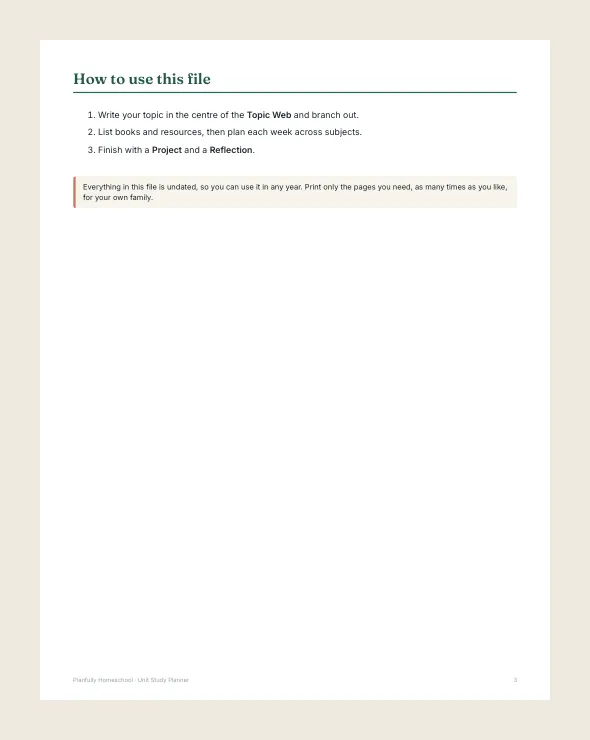
10 pages to plan a unit study across subjects: topic web, books and resources, subject integration, weekly plans, vocabulary, project, field trip and reflection. Undated PDF.
Add to order